Shopware 6
Preparation: Copy the CCM19 code snippet from-
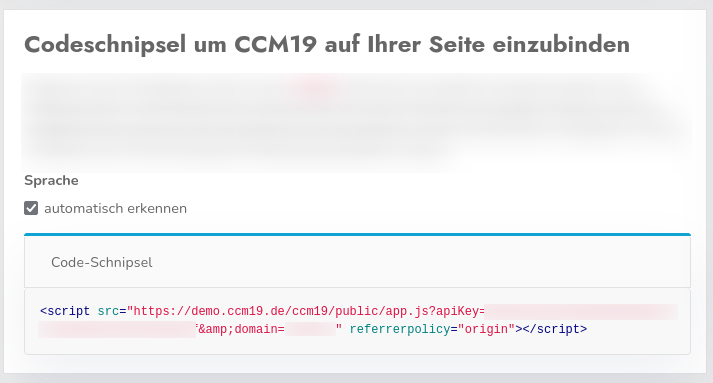
Before you begin integrating CCM19 into Shopware 6, you must copy the required code snippet from CCM19 at-. This integration code is essential for CCM19 to function properly on your Shopware 6 website.
The integration code becomes available as soon as you have created and configured your domain in CCM19.
- Open the CCM19-dashboard for your domain and copy the code-snippet.
After you have copied this code-snippet, you can proceed with the actual installation of CCM19 in Shopware 6.
2. Log in to your Shopware 6 account and install CCM19
After this preparatory step, you can proceed with the integration into Shopware 6:
- Open the “Extensions” section in your Shopware 6 admin-panel.
- Navigate to “Store.”
- Enter “CCM19” in the search field at the top.
- Click on the title or image of the CCM19 integration.
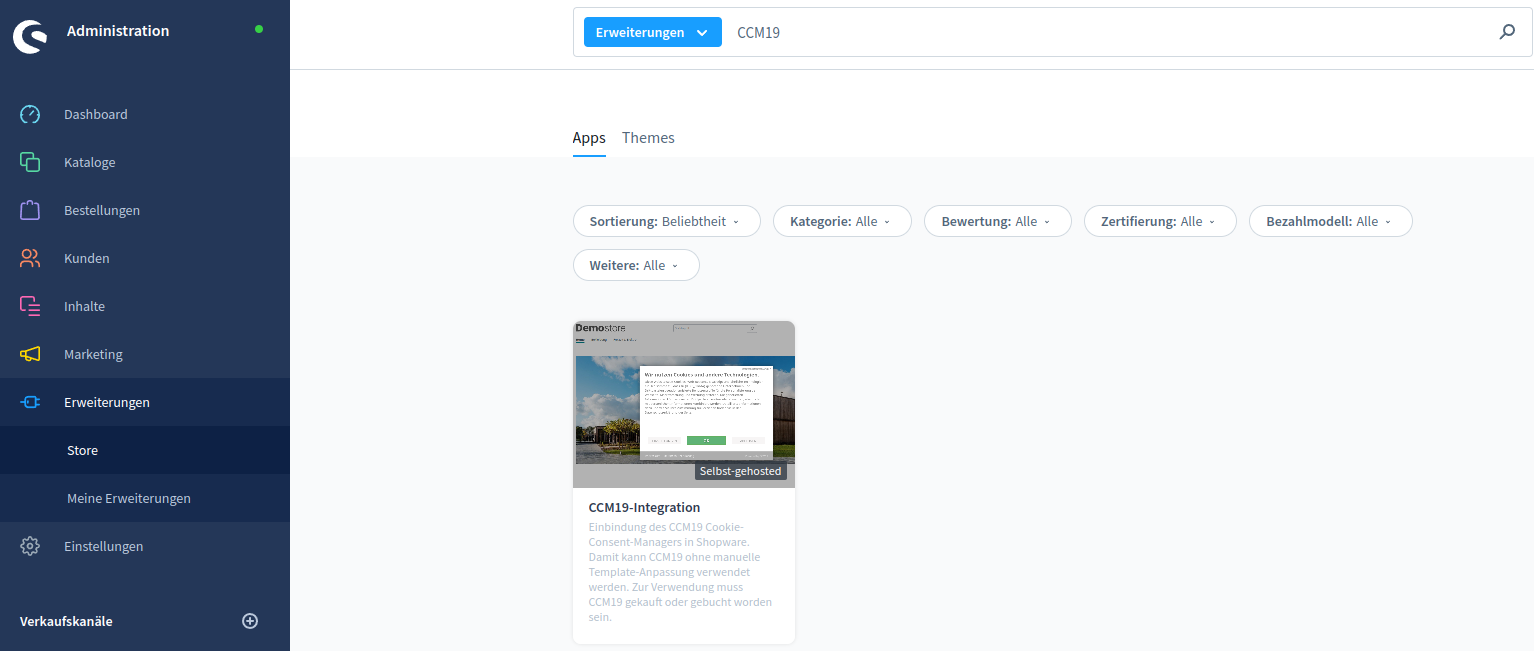
- Click "Add Extension" to install CCM19.
 6. In the "CCM19 Code-Snippet" field, paste the code you copied earlier from the CCM19 backend to complete the integration.
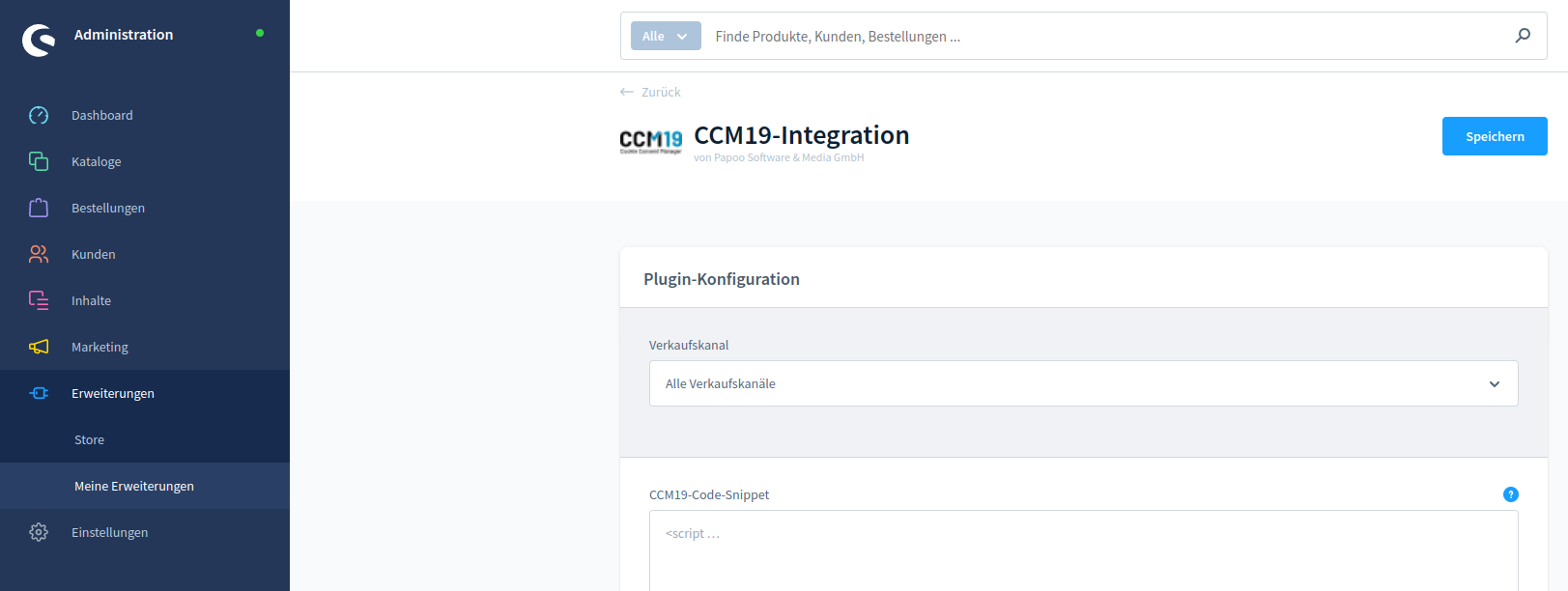
Once you have completed these steps, the setup of CCM19 in your Shopware 6 store is fully complete. You should now be able to see the cookie banner on your website.
Important: Please do not disable the Shopware-cookie-banner via the settings. This is what enables cookie-management and communication with marketing-plugins within Shopware 6. CCM19 will automatically hide the Shopware-cookie-banner—which remains active—to ensure full functionality.